Using your loyalty card
Your card lives in your phone's browser. There's no app to download and nothing to fill in at the till. These are the screens you'll see, step by step.
Also see: the guide for venues →Setup, the till and offersStart a card
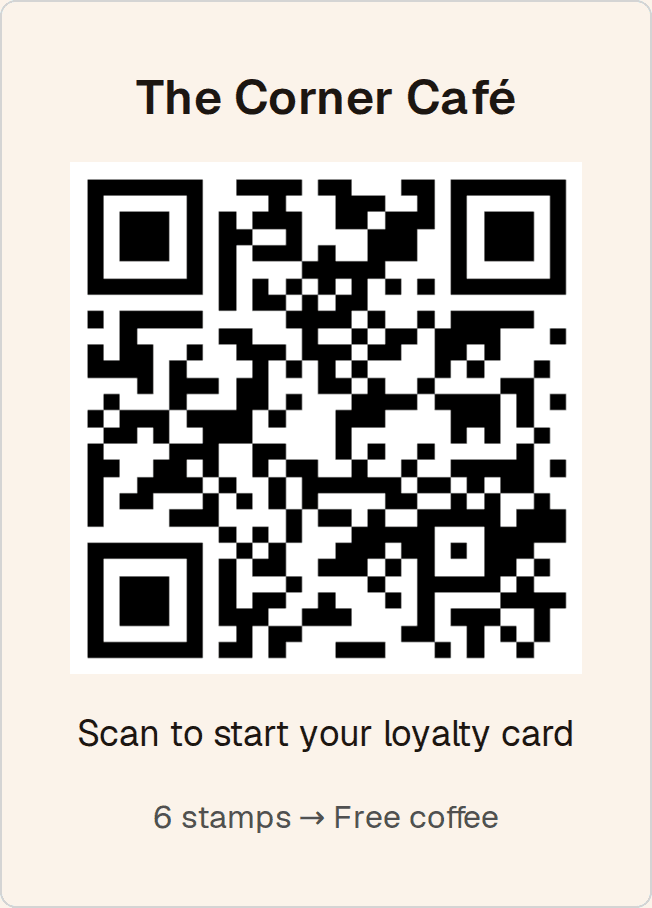
Scan the QR on the counter
Point your phone camera at the venue's QR code and tap the link that appears. It might be on the counter, a table card or the menu.
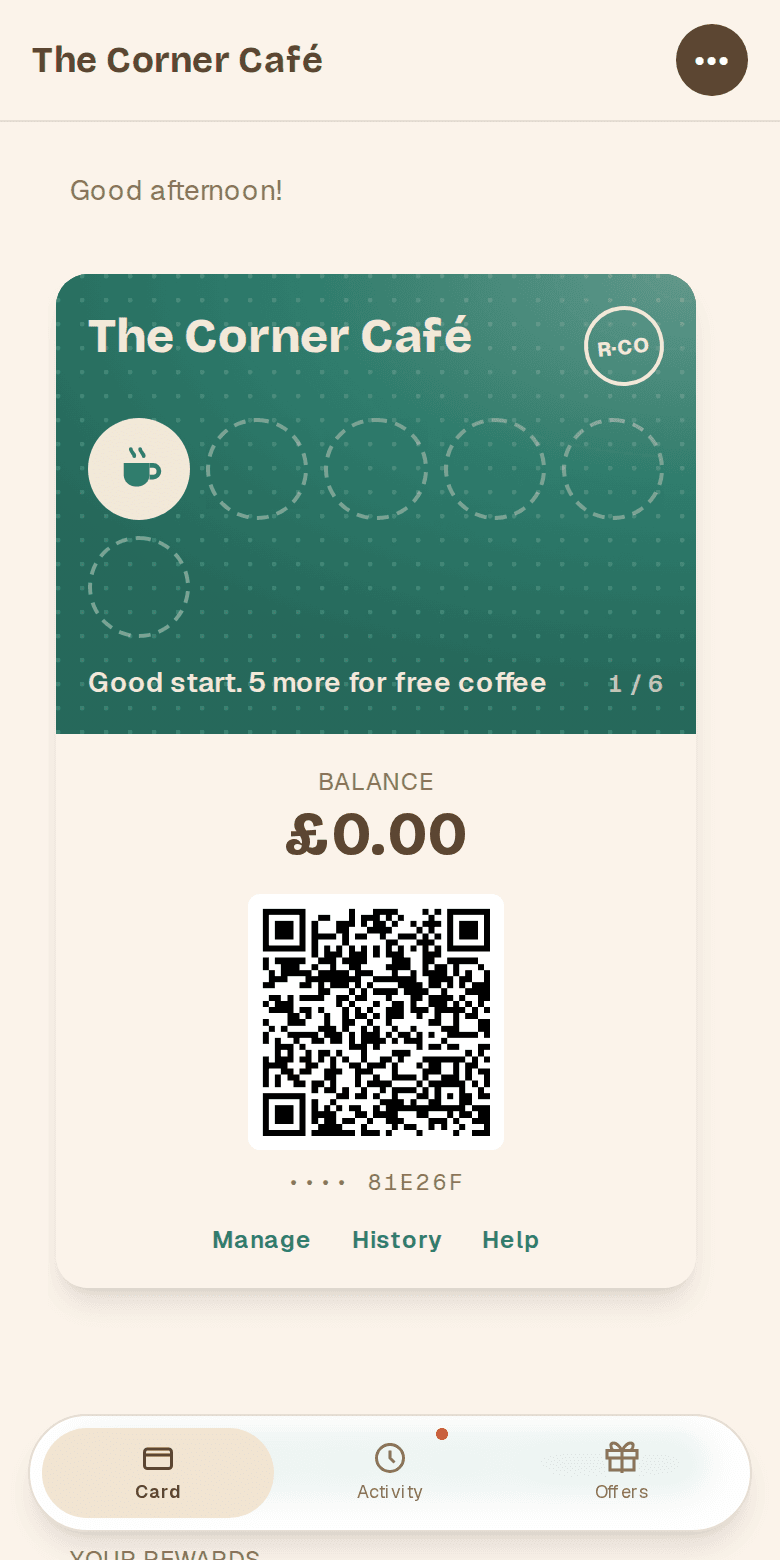
Your card opens
It opens in the venue's colours, usually with your first stamp already on it. Some venues add a welcome reward too.
Tip: add the page to your home screen (Share, then Add to Home Screen) so it's one tap away next time.
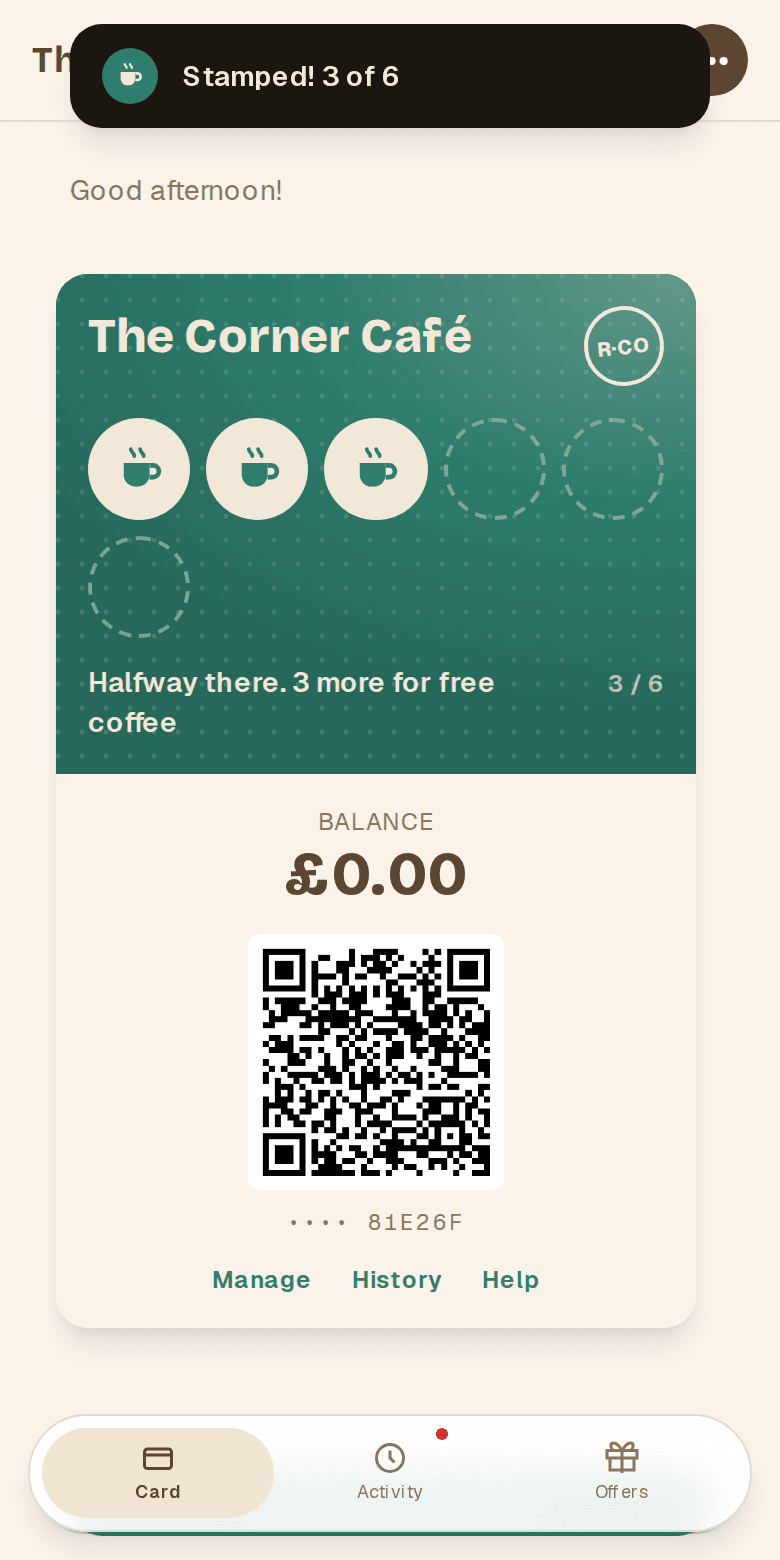
Show your card when you pay
Staff scan the QR on your card and add your stamps. You pay at the till as you normally would. Your card updates straight away.
Some venues connect their till, so paying by card adds your stamp by itself once your card is saved with your email.
Save your card
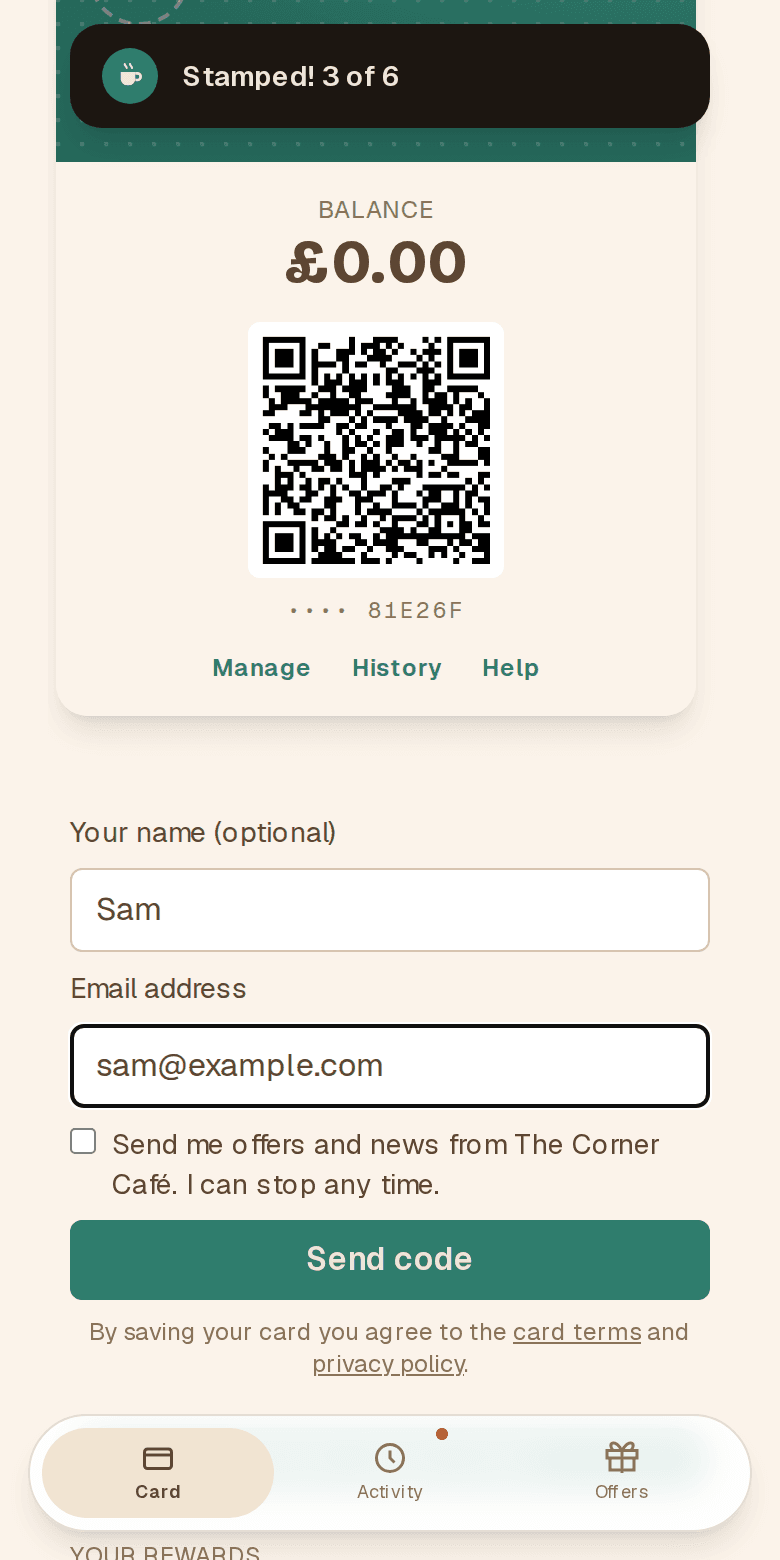
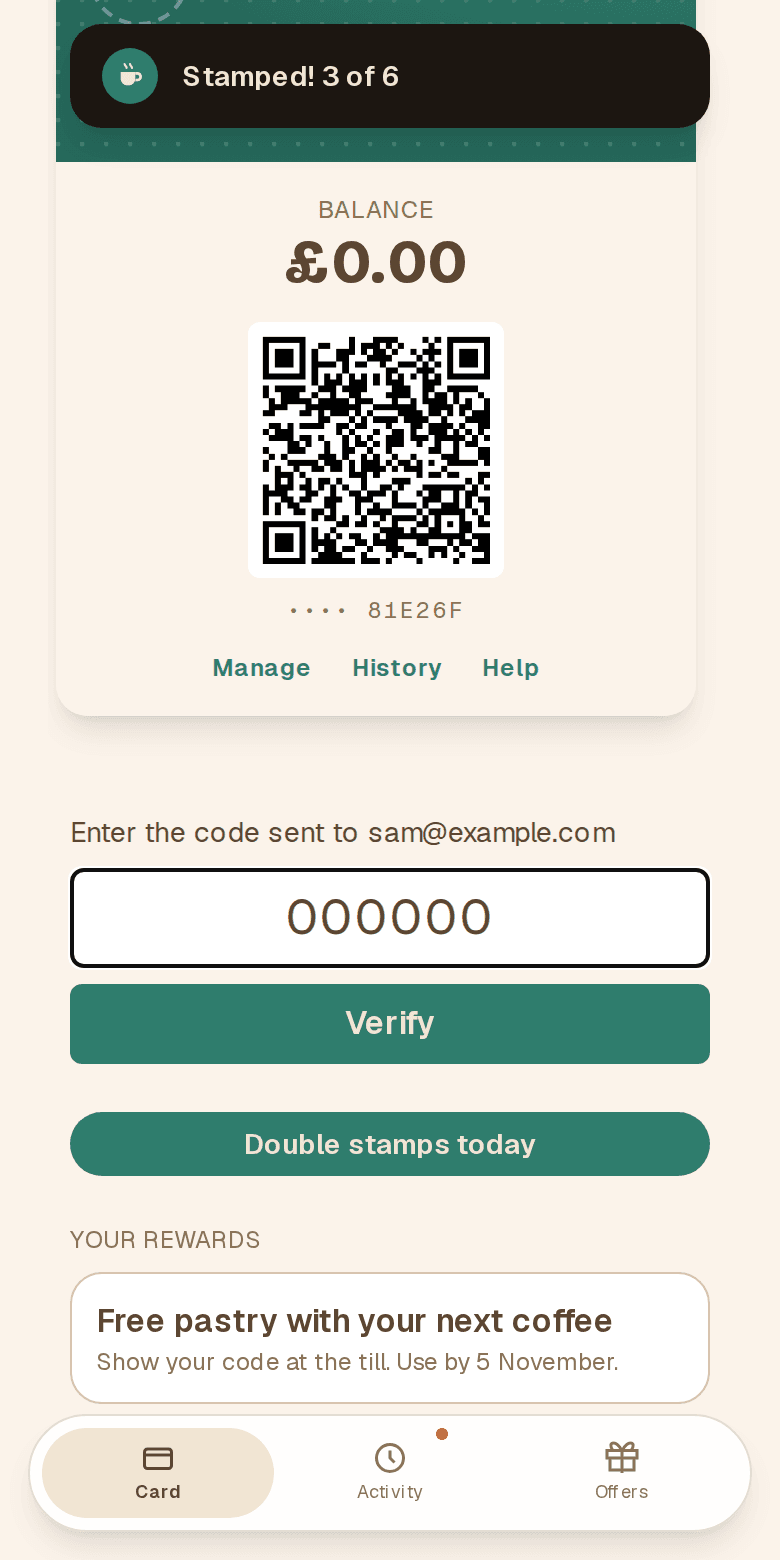
Add your email
Tap Save my card, type your email, then type the 6-digit code we email you. There's no password. Your name is optional.
A saved card is safe if you lose your phone or clear your browser, and you need one to cash in a full card. An unsaved card only lives on the phone you started it on.
You can also tick the box to hear about offers from that venue. It's up to you, and you can stop at any time.
Apple Wallet
Keep your card in Apple Wallet
On an iPhone, tap Add to Apple Wallet under the QR on your card, then Add. Your card then sits in Wallet with your bank cards, so you can open it without finding the web page.
Show the QR in Wallet at the till just like the one on your card. Your stamps, rewards and balance update in Wallet by themselves, and you get a notification when a reward is ready.
Your card page then says In your Apple Wallet. If you remove the pass, the button comes back.
Google Wallet
Keep your card in Google Wallet
On an Android phone, tap Add to Google Wallet under the QR on your card, then Add. Your card then sits in Google Wallet, so you can open it without finding the web page.
Show the QR in Google Wallet at the till just like the one on your card. Your stamps, rewards and balance update there by themselves.
Your card page then says In your Google Wallet.
Rewards and offers
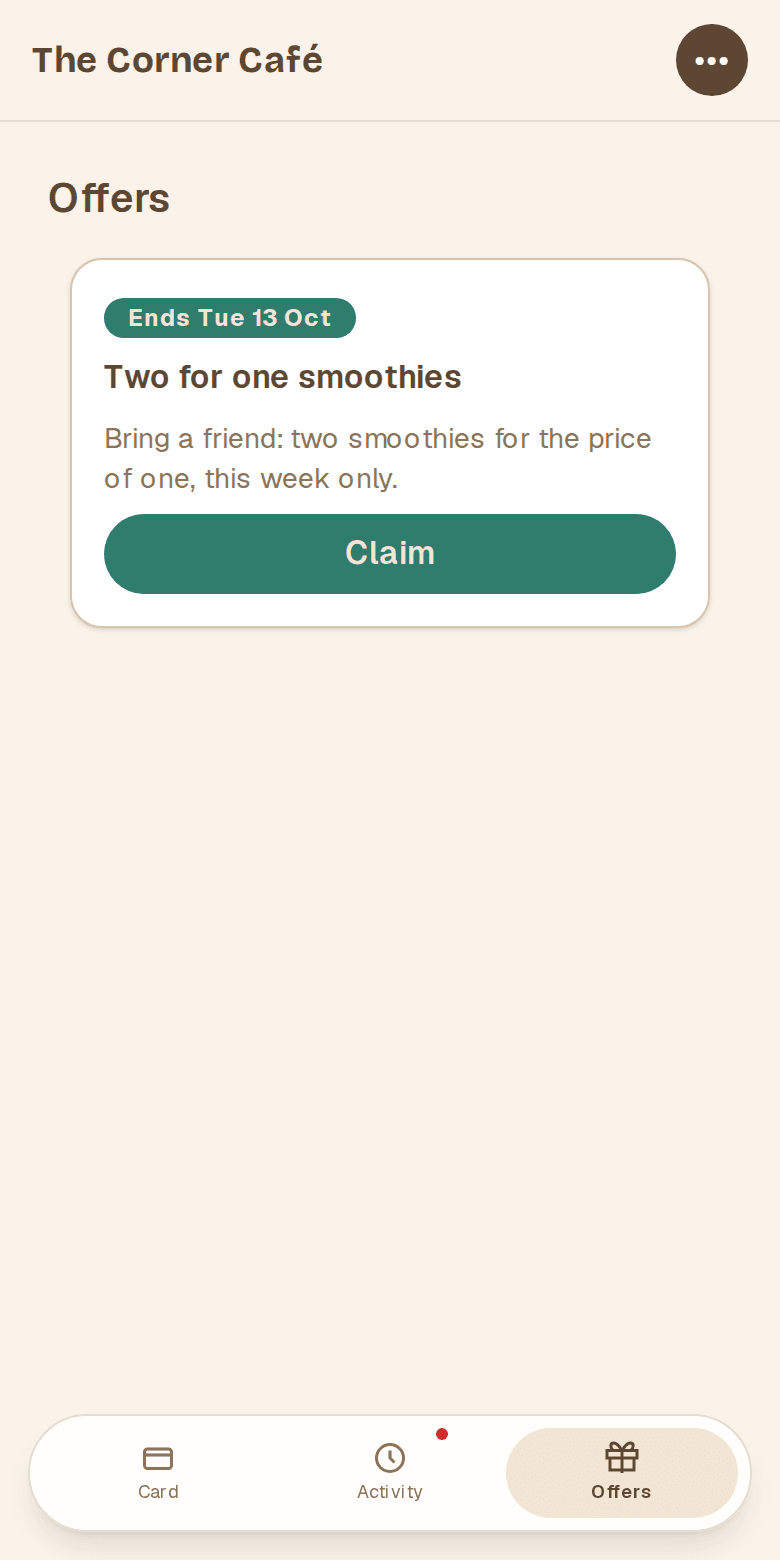
Claim an offer
The Offers tab shows what the venue is running. Tap Claim and the offer goes on your card, ready to use. Each offer can be claimed once.
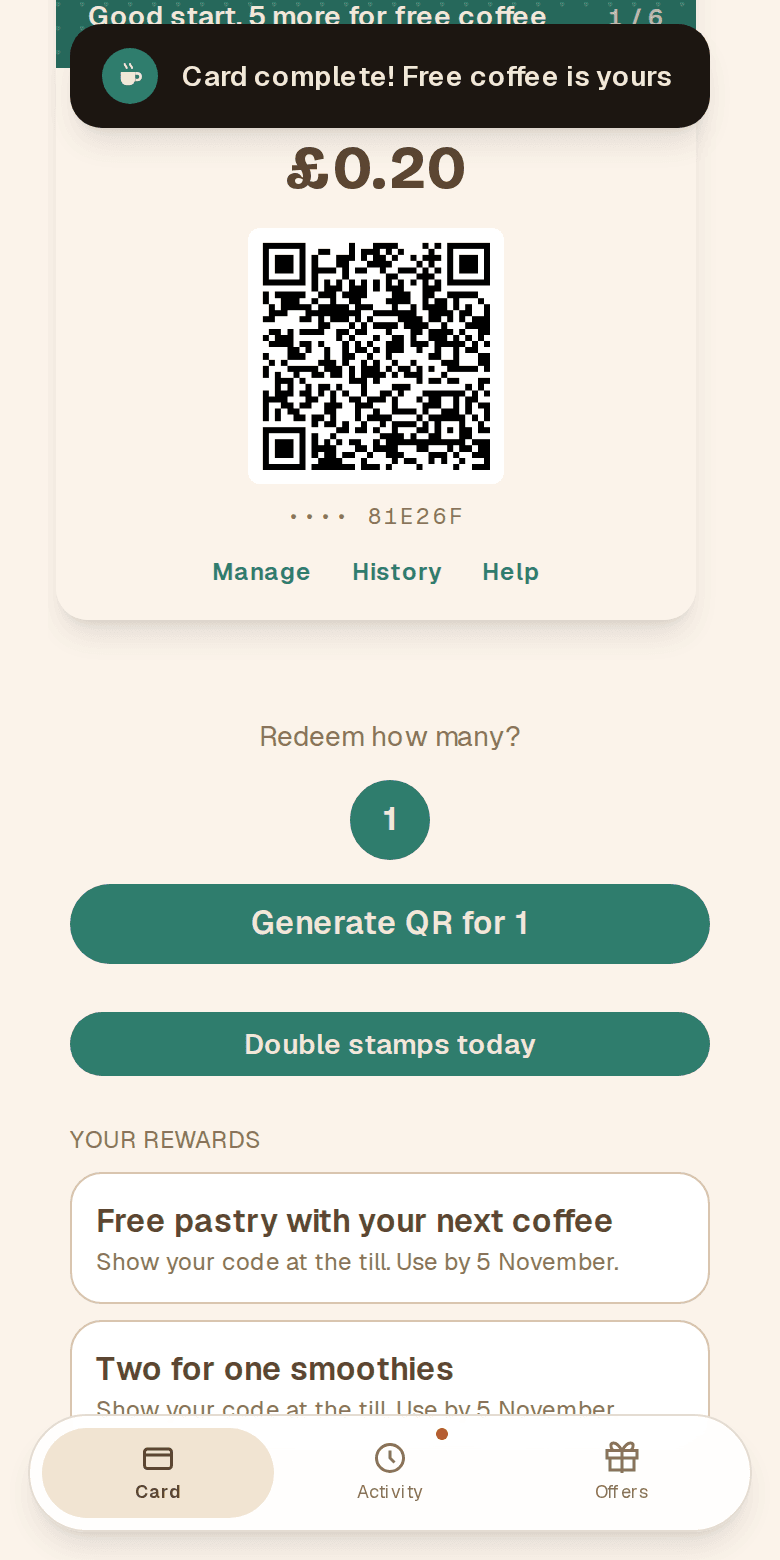
Use a reward
Welcome rewards, gifts and offers you've claimed are listed under Your rewards, and vouchers the venue has given you under Your vouchers. Show your card at the till and staff use them for you.
Been given a gift voucher? Tap Add to my card in the email and it waits on your card until you use it. Or show its QR or code at the till. You can spend it over more than one visit.
When your stamp card is full, choose how many rewards to use and tap Generate QR. Full cards keep counting, so you can save rewards up for later.
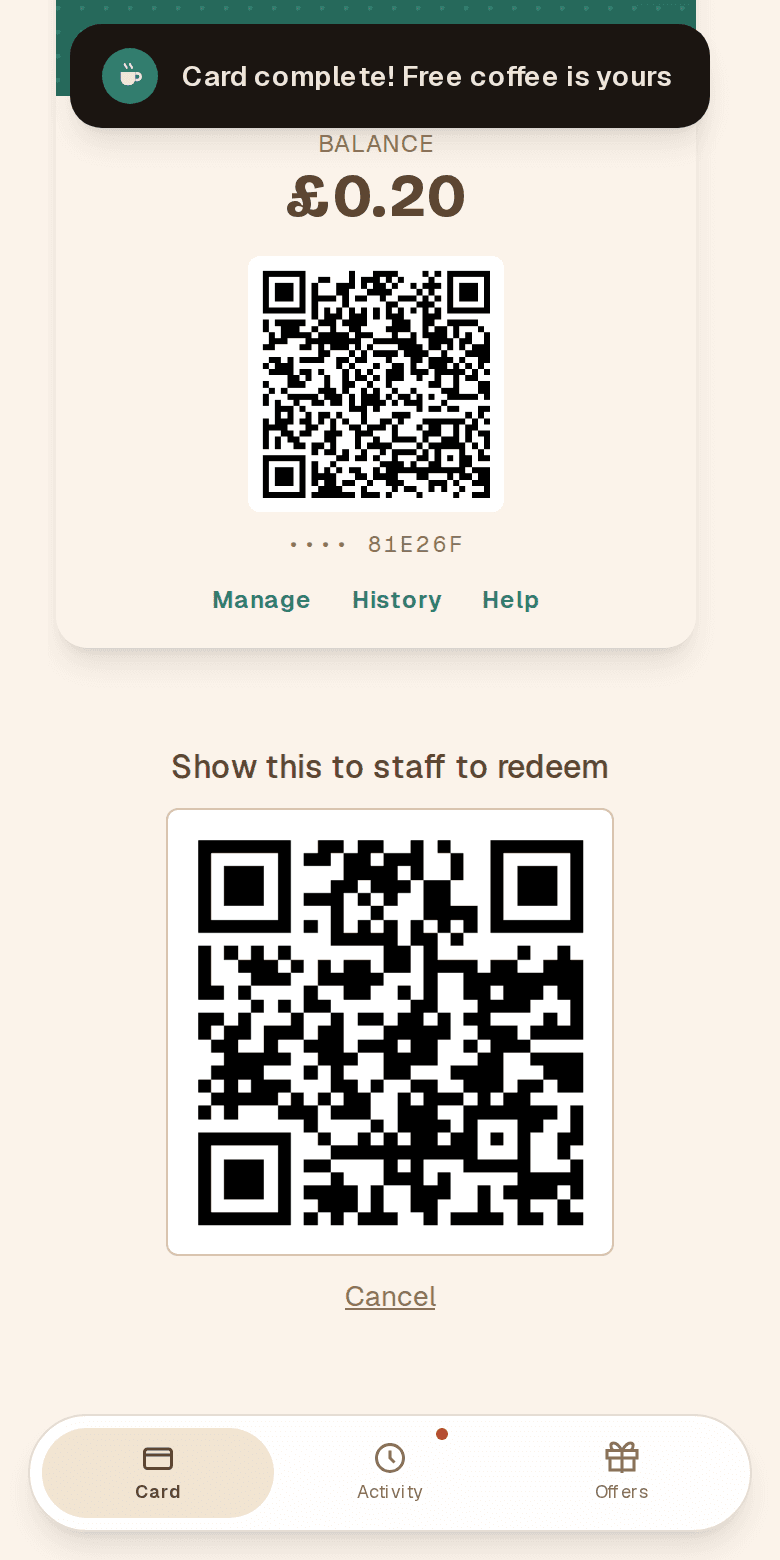
Show the code to staff
Staff scan it and confirm, and the stamps come off your card. The code only works once and only for a short time. Tap Cancel if you change your mind.
Your balance
Money back to spend next time
Some venues give a little back on what you spend. It shows as the Balance on your card. To spend it, ask staff at the till, and they take it off your bill.
New phone or cleared browser
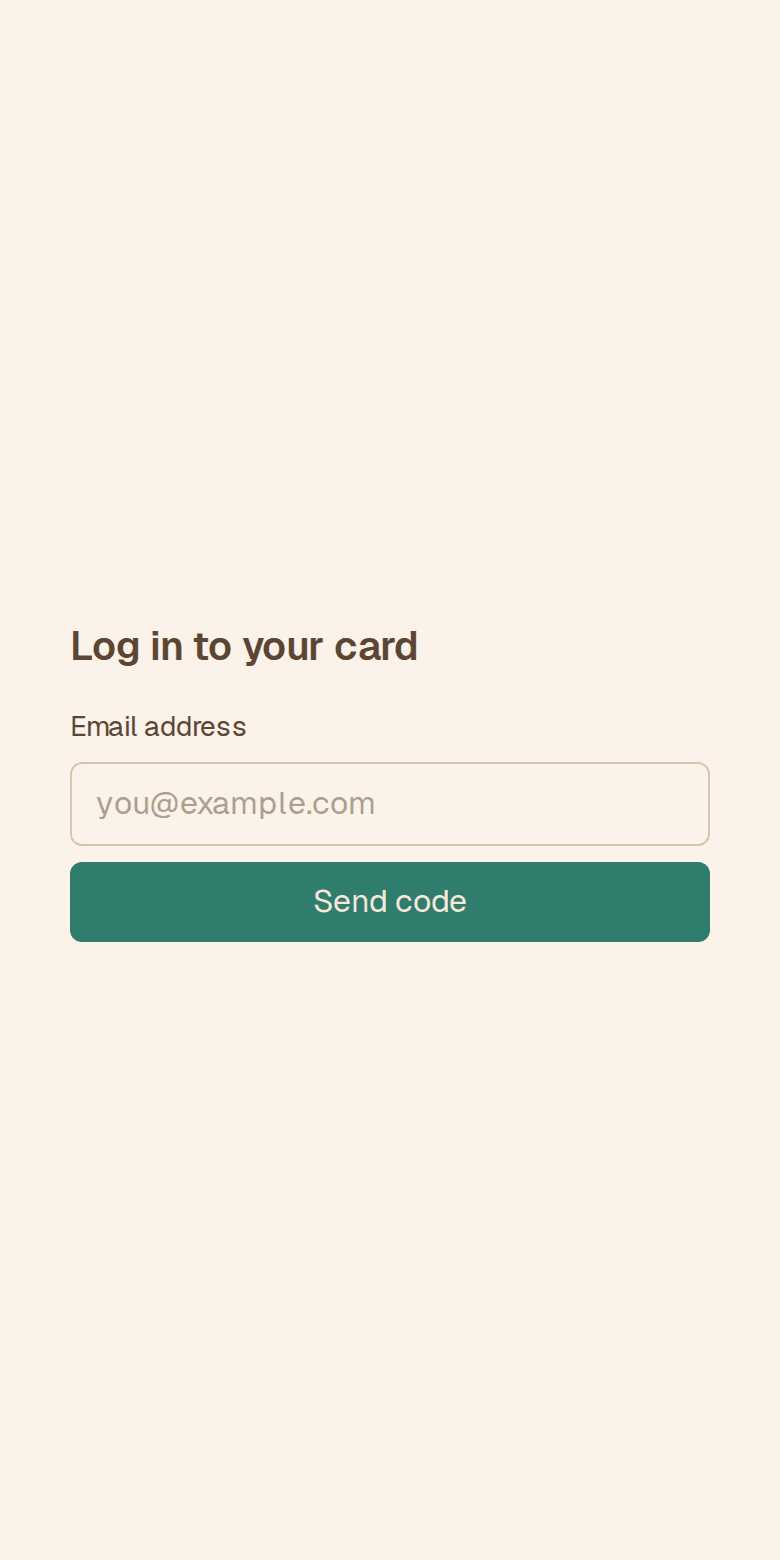
Log back in
Scan the venue's QR and tap Already have a card? Log in, or go to recouper.app/my-card. Type your email and the code we send. Every card you saved comes back, with its stamps and balance.
Codes last 10 minutes. If one doesn't arrive, check your spam or junk folder.
More than one venue
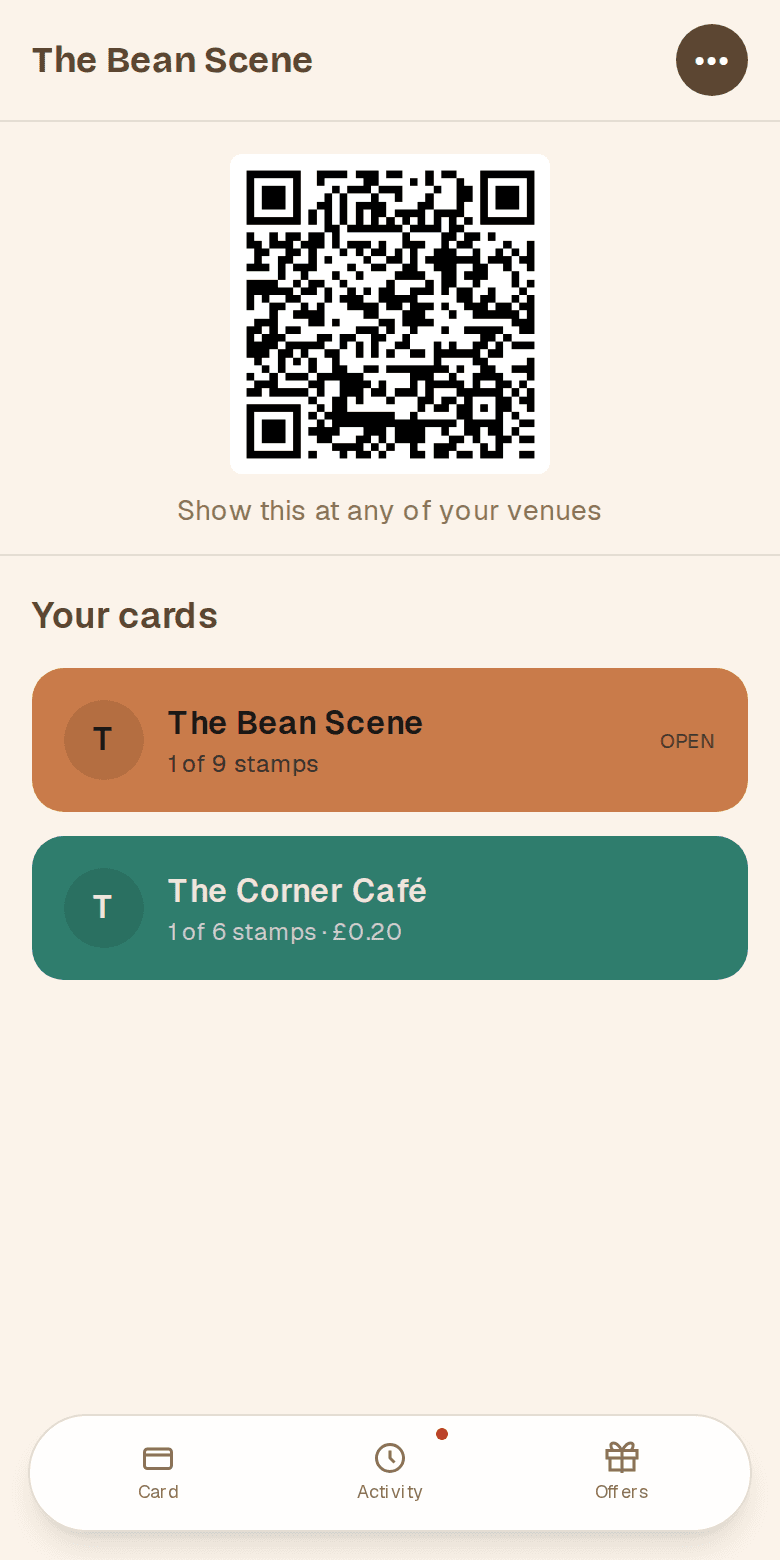
One login for all your cards
Scan another venue's QR and you get a separate card there, already logged in. Your cards lists them all, and one QR works at each of them.
Offers are chosen per venue. Saying yes to one venue's offers doesn't sign you up to another.
Still stuck?
The help page answers the common questions and has our email address.