Running Recouper at your venue
Everything you and your staff do, from the first sign-up to a customer's free coffee. The till runs in a browser on any phone, tablet or computer, alongside your own till.
Also see: the guide for customers →What your customers see, step by stepWhat you need at the counter
Pick how you'll add stamps
There are three ways, and you can use more than one. Your setup guide asks which you'll use and sets the till up to match. You can change it any time.
A phone or tablet
Every plan
What you need
Any phone or tablet with a camera and internet. A staff phone is fine.
At the counter
Open the till in the browser, point it at the customer’s QR and tap how many stamps.
A counter scanner
Every plan
What you need
A USB or Bluetooth 2D scanner that reads phone screens, plugged into the tablet or computer running the till.
At the counter
Scan the customer’s QR and tap how many stamps. Nothing else to click.
Your till
Pro and Plus
What you need
A till system we link with. We’re adding more, so ask if yours isn’t there yet.
At the counter
Add the customer to the sale on your till and the payment adds their stamps and any cash-back. Rewards are used on the Recouper till.
Mix them if you like, say a scanner on the counter and a staff phone for busy days, and change any time. Customers just need a phone with a camera: they scan your QR to join, with no app to download.
Get set up
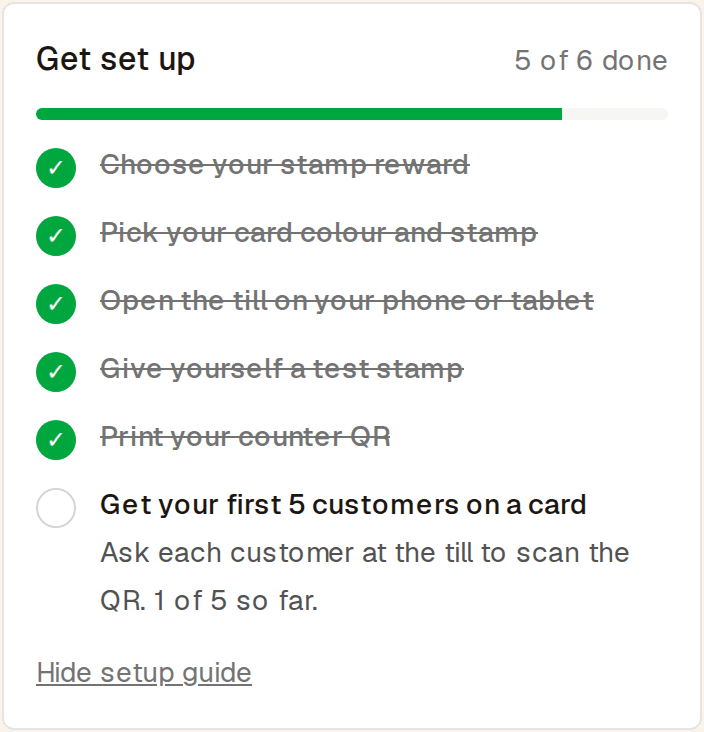
Follow the setup guide
Set up your venue with your email, then pick your reward. Your dashboard opens with a short setup guide: choose the reward, pick your card colour and stamp, open the till, give yourself a test stamp and print your counter QR.
You log in to the dashboard with your email and password. Forgotten it? Choose Forgot your password? and we'll email you a code and a link to set a new one. Want to look around first? See how it works.
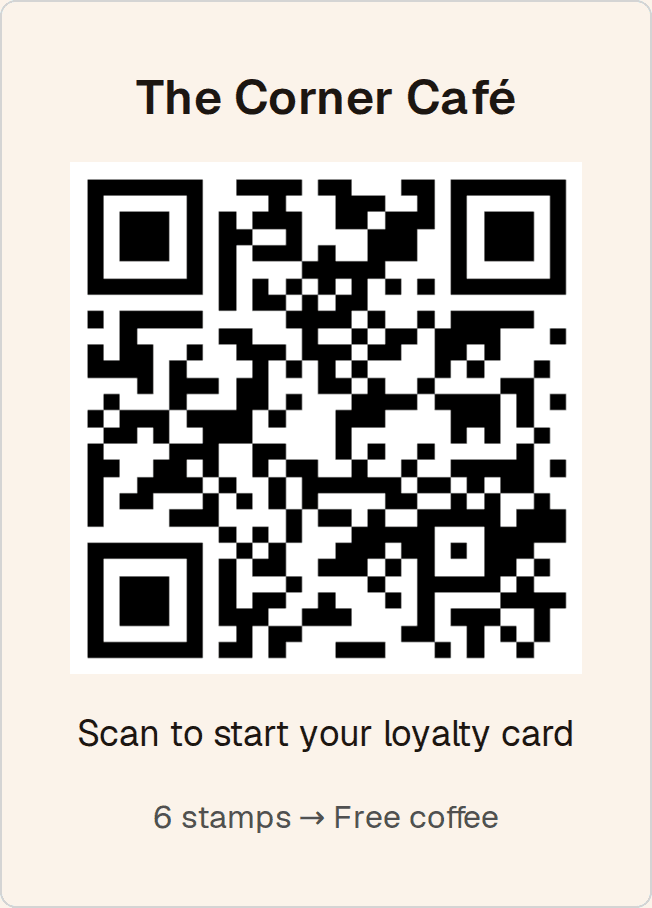
Put your QR on the counter
Tap Open printable counter sheet on your dashboard and print it. Put it where customers wait: by the till, on tables or on the menu. Scanning it starts a card, and it never needs reprinting.
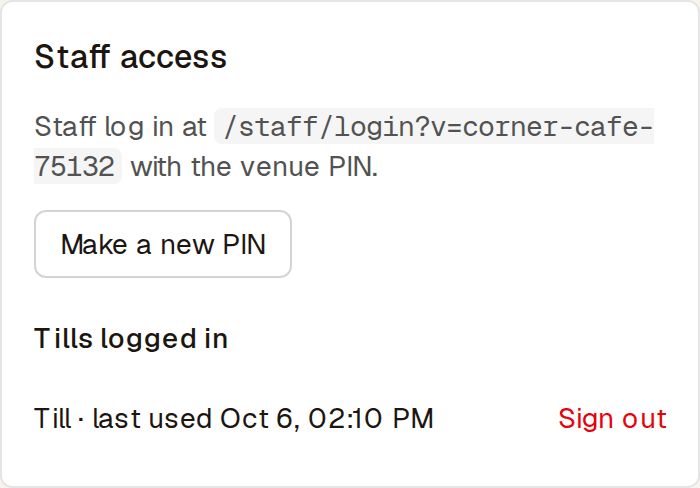
Open the till on a phone or tablet
Open the till link from Staff access on any phone or tablet with a camera and enter your venue PIN. It stays logged in, so staff only do this once per device.
If the PIN gets out or a device goes missing, tap Make a new PIN or sign that till out from the list.
At the till
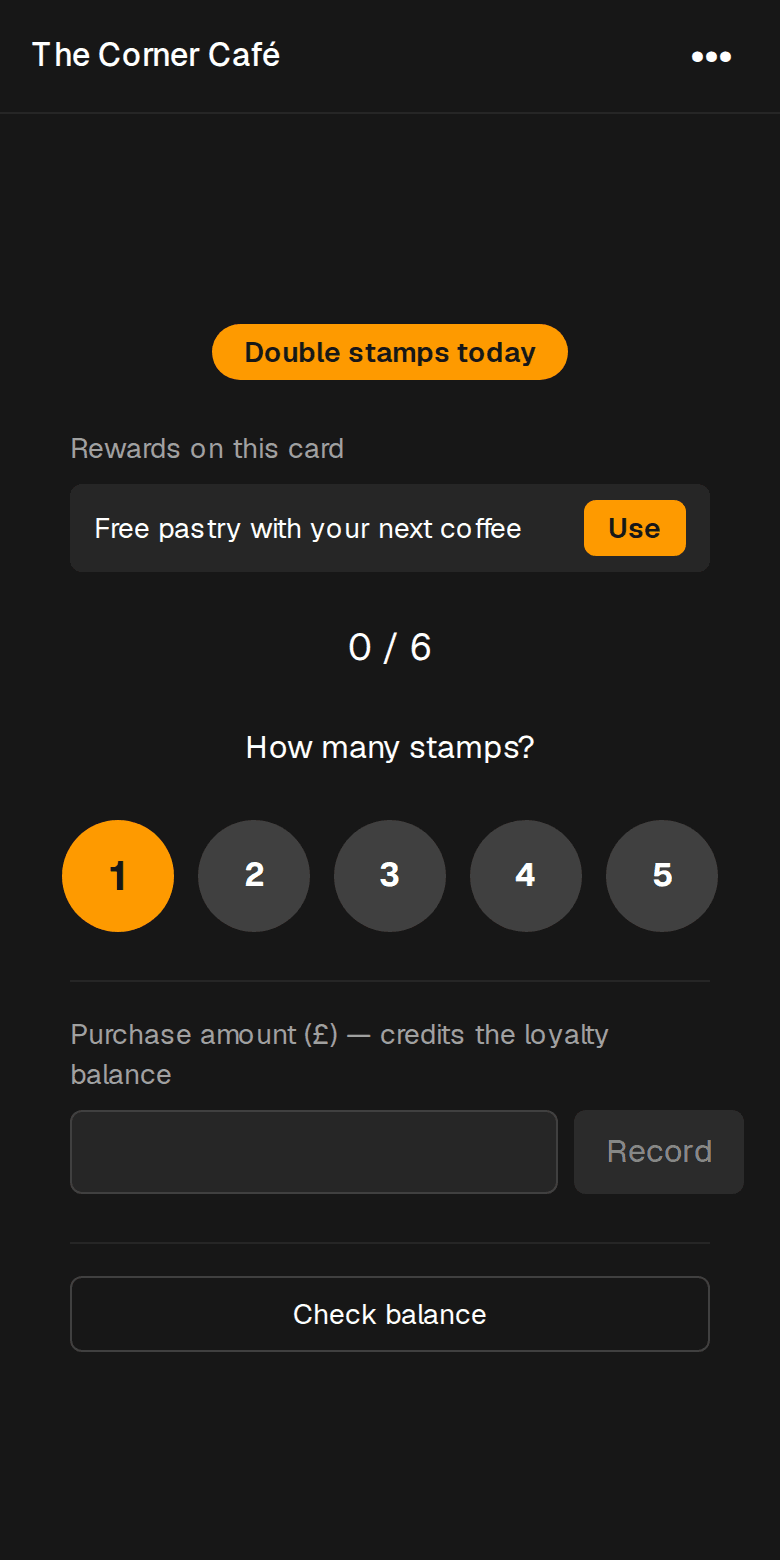
Scan the customer's card
Point the till at the QR on the customer's phone. No camera, or it won't read? Tap Can't scan? and type the 6-character code under their QR.
The till shows any rewards they have waiting and any promotion running today.
Using a counter scanner
Plug the scanner into the tablet or computer running the till, or pair it over Bluetooth. Most scanners work as a keyboard, so there's nothing to install. On the till, tap Using a counter scanner? Turn the camera off. Then just scan the customer's QR and the till moves on by itself.
Pick a 2D scanner that says it reads codes on phone screens. A stand lets customers hold their phone up to it.
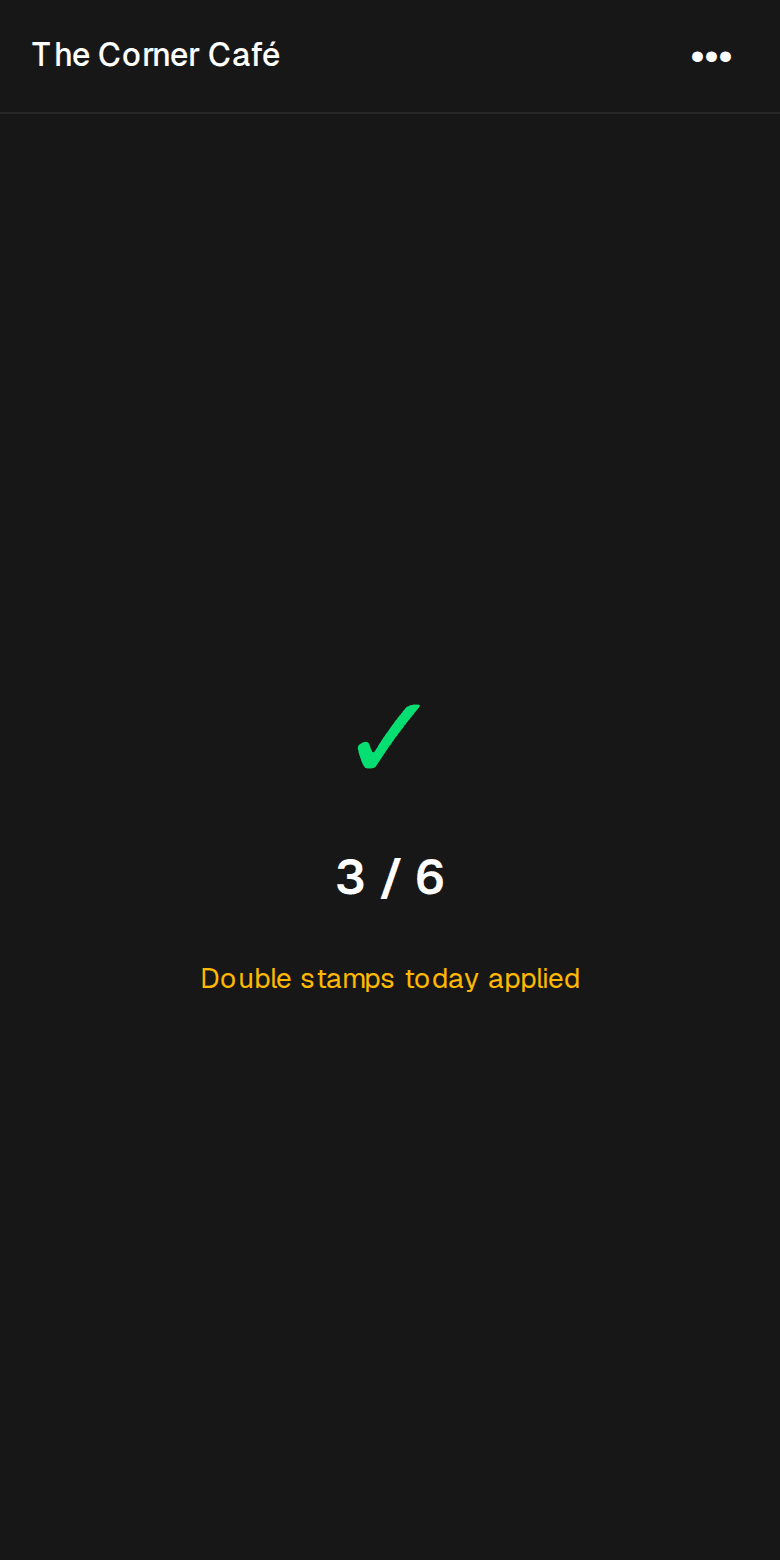
Add stamps
Tap how many stamps they've earned. Promotions such as double stamps are added for you. The till goes back to scanning by itself, ready for the next customer.
Take payment on your own till as usual. Recouper doesn't handle the payment.
Rewards and balances
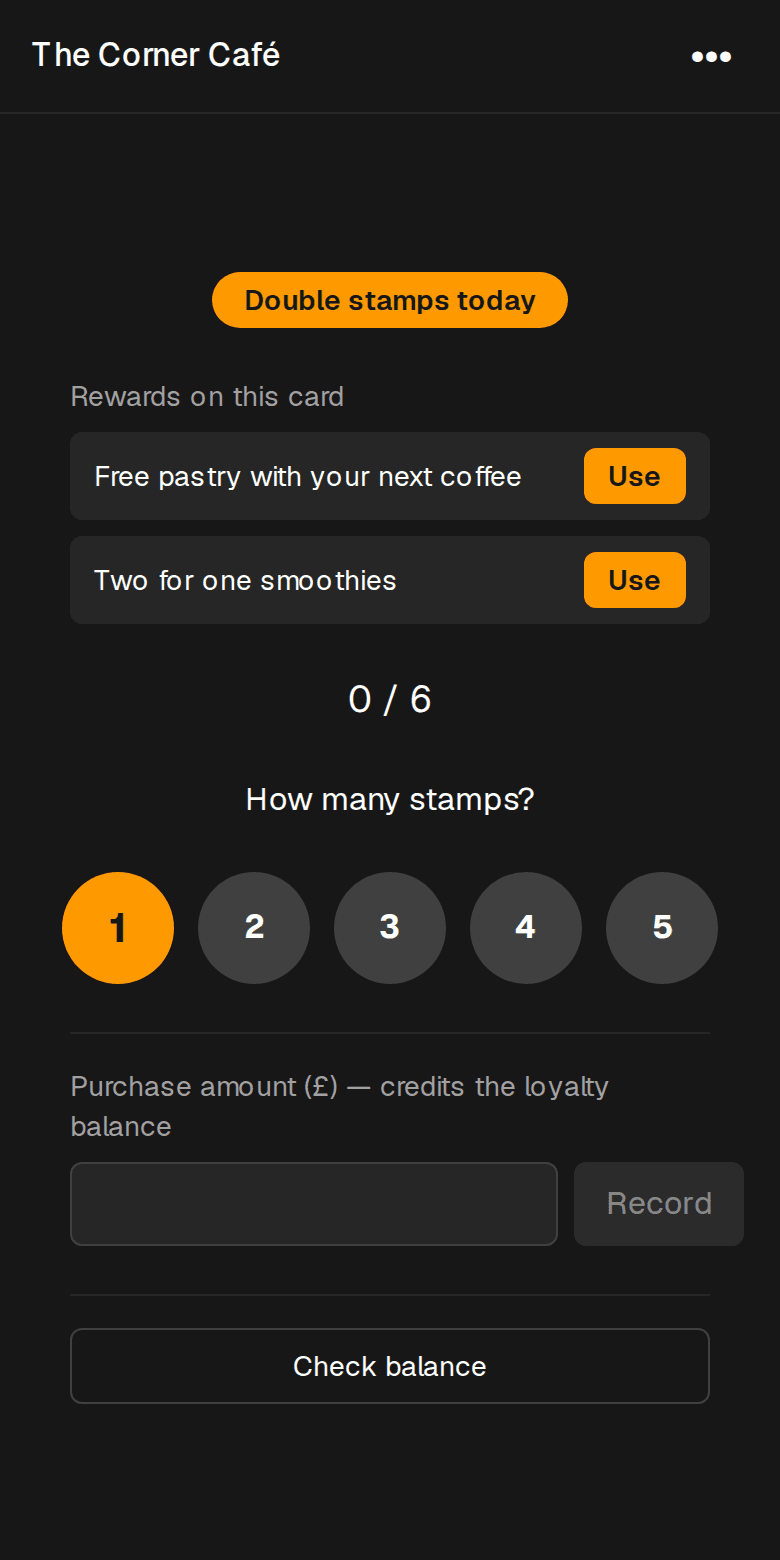
Use a reward
Welcome rewards, gifts and claimed offers show at the top of the till. Tap Use next to the one you're serving.
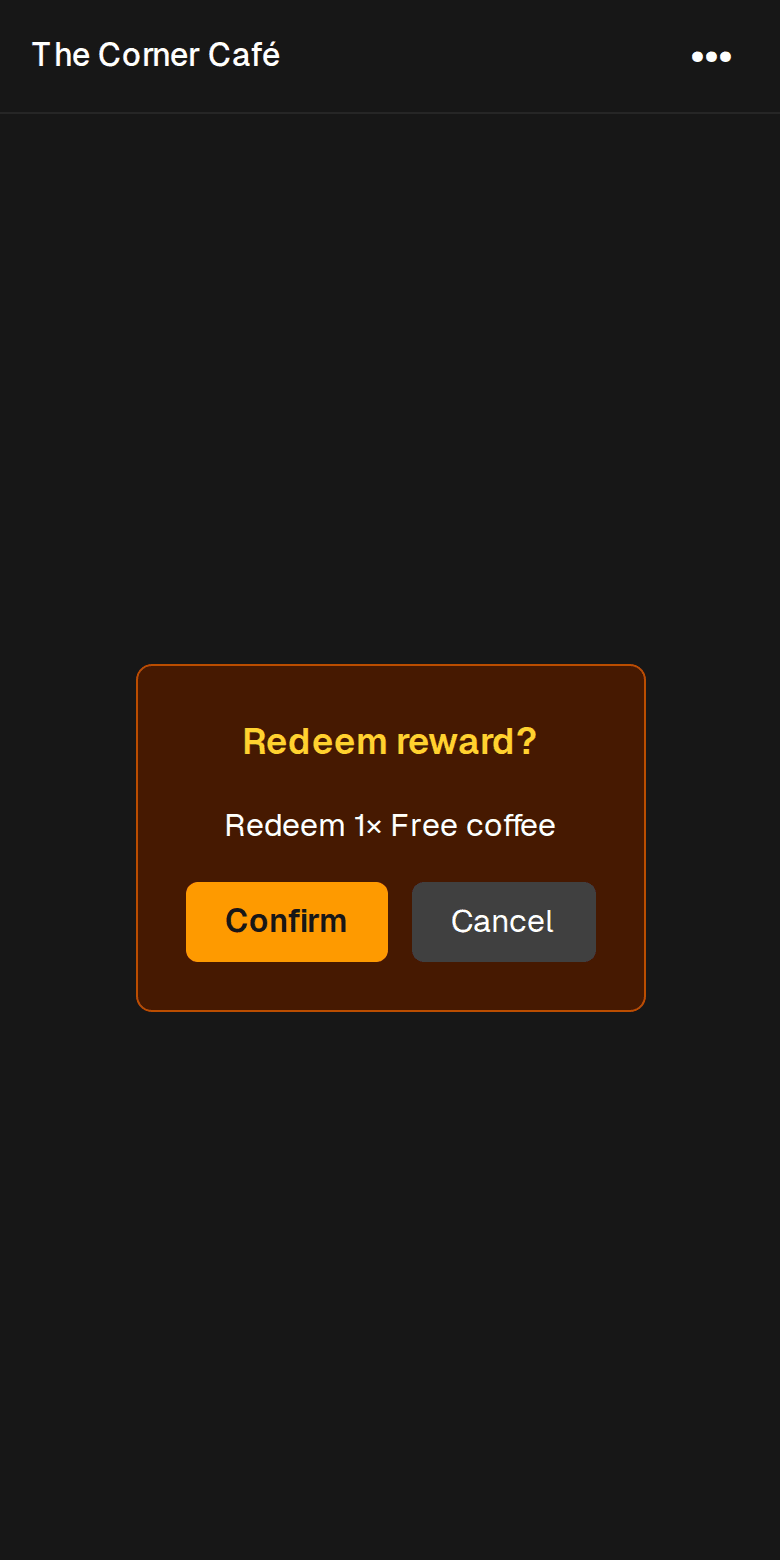
Cash in a full card
The customer makes a code on their card and shows it to you. Scan it, tap Confirm and give them their reward. Extra stamps carry over to the next card.
Customers need to save their card with an email before they can cash it in, so encourage them to.
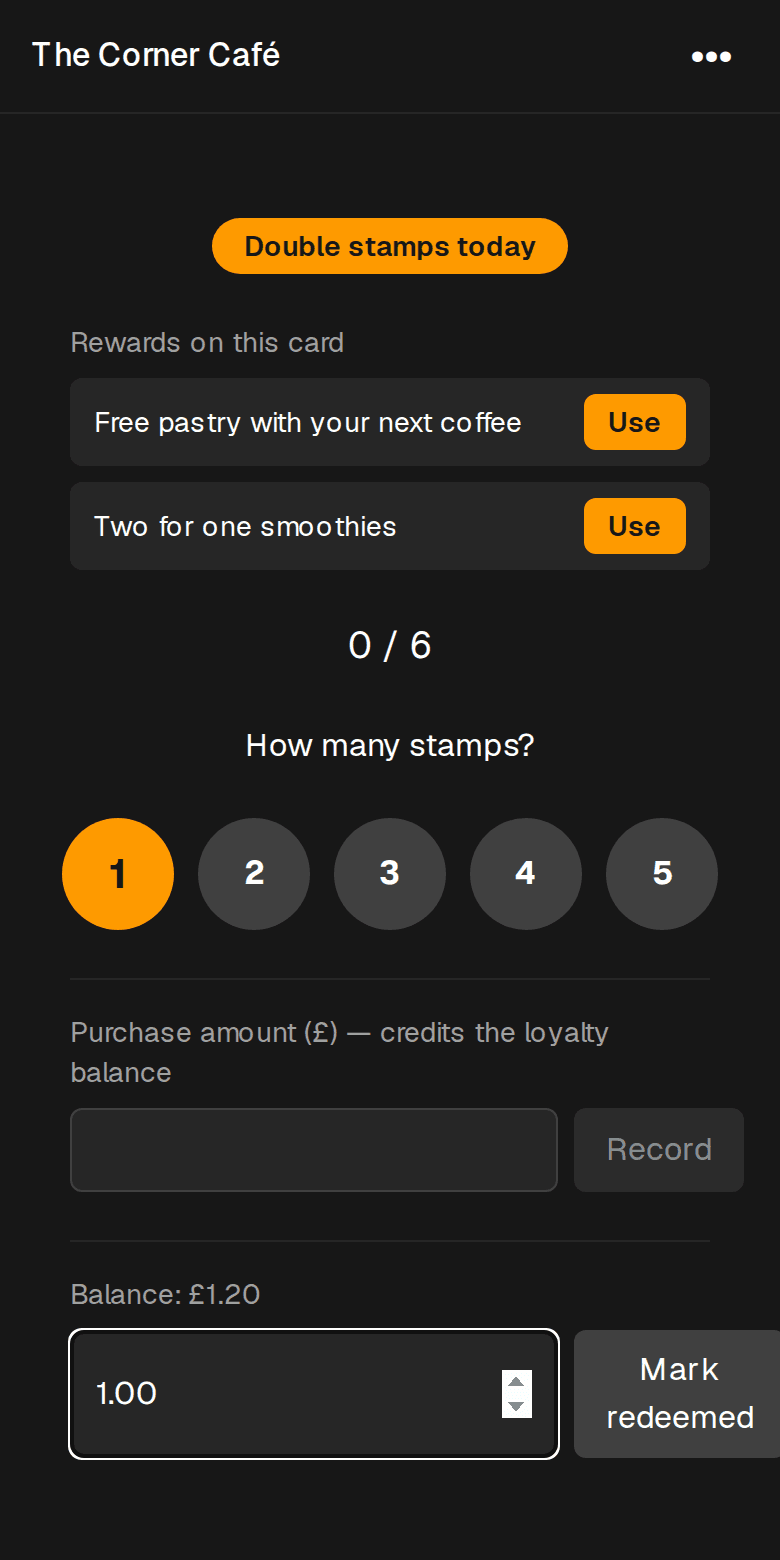
Spend a balance
If you give cash-back, customers build up a balance. To spend it, scan their card, tap Check balance, type the amount and tap Mark redeemed. Then take the same amount off the bill on your till.
Without a connected till, type the purchase amount after scanning and tap Record to add their cash-back.
Take a voucher
A promo voucher given to a customer shows on the till when you scan their card. Tap Use. For a shared code or a gift voucher, scan the QR on the voucher or type its code under Enter code manually.
A gift voucher shows what's left on it. Type the amount to take off and tap Take off; whatever is left stays on the voucher for next time. Then take the same off the bill on your till. Tapped the wrong one? Undo works for a few minutes.
Sell a gift voucher
Take the payment on your own till as usual. Then tap Sell a gift voucher on the Recouper till, type the value and who it's for: their name, email (a second one for a couple), mobile, who it's from and a message. We email them a button that puts the voucher on their card here; they show their card to spend it. You can also show or print the voucher with its code.
Connect your till
Let payments add the stamps
On Pro and Plus you can link a till system we work with. Connect it once from Point-of-Sale link on your dashboard. When staff add the customer to the sale on your till, the payment adds their stamps and any cash-back to their card. Customers need to have saved their card with their email first.
Staff can still scan on the Recouper till whenever that's quicker. Rewards and balances are marked as used on the Recouper till, and you take the discount off on your own till as normal.
We're adding more tills. If yours isn't listed on your dashboard, email hello@recouper.app and tell us which one you use.
Offers and promotions
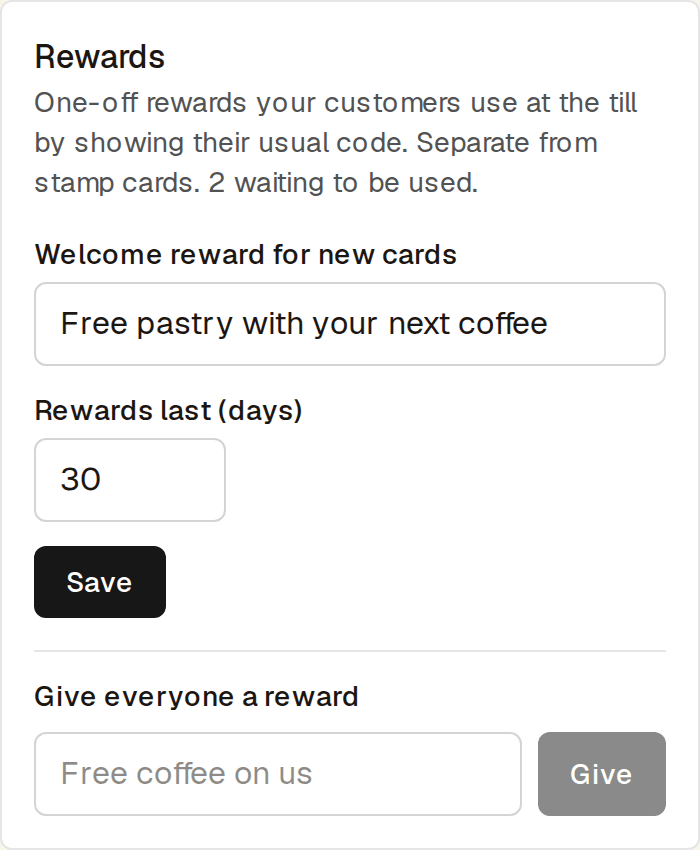
Rewards
Set a welcome reward for every new card, or give all your customers a reward at once, such as a free coffee to say thanks. Rewards stay on the card until they're used or reach the number of days you set.
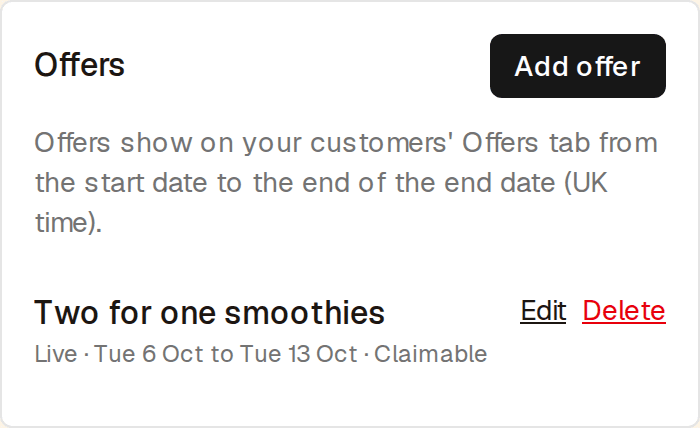
Offers
Offers show on your customers' Offers tab between the dates you set. Make one claimable and customers can add it to their card to use at the till.
Promotions
Run double stamps or extra cash-back on the days you choose. The till applies them by itself and tells staff when one is on.
Rewards, offer claims and promotions depend on your plan. The Extras panel on your dashboard shows yours.
Your trial and plan
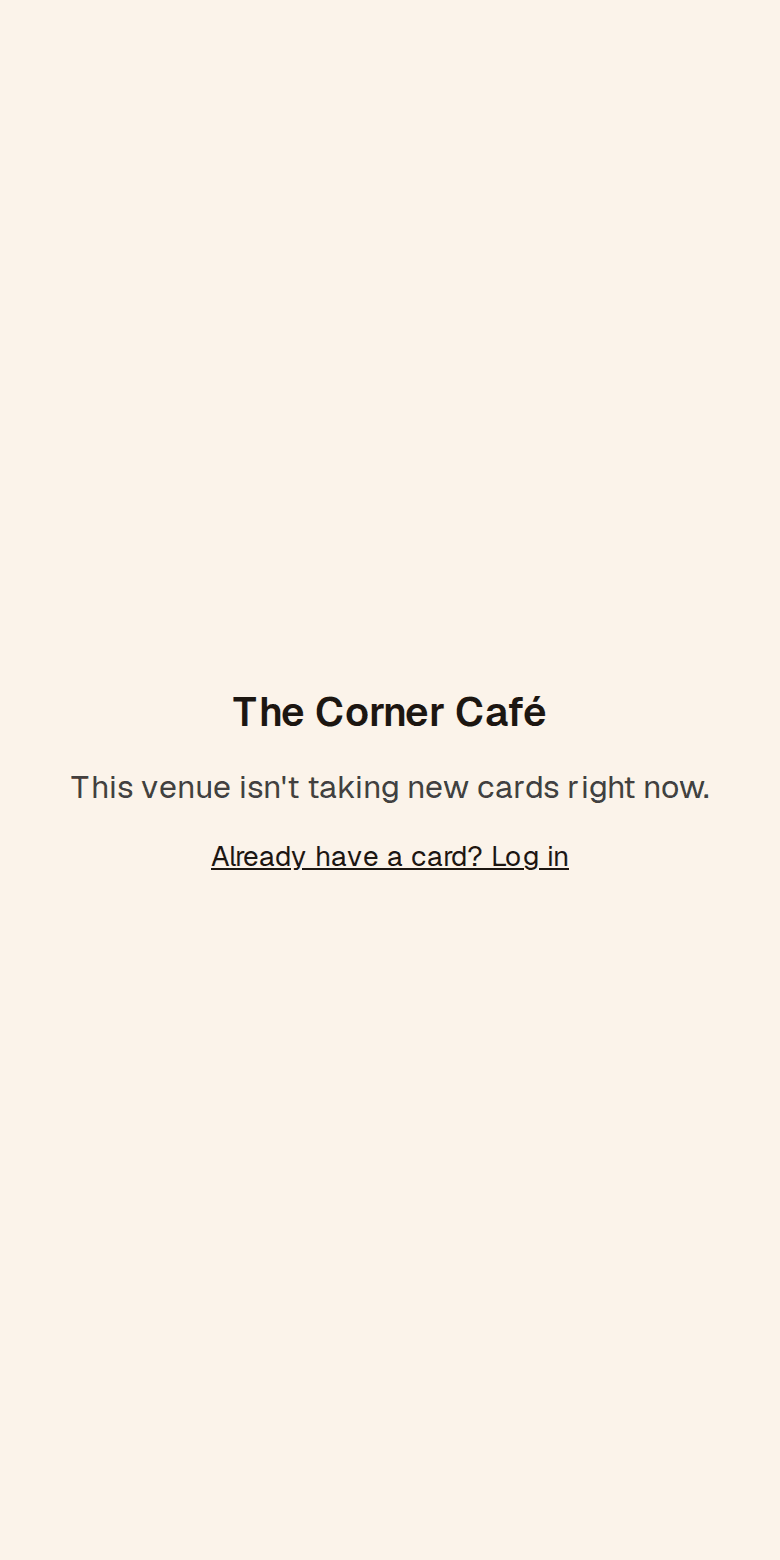
When the free trial ends
Your dashboard shows how much of your free trial is left. If it ends before you subscribe, new customers see that you're not taking new cards right now, with no reason given. Existing cards keep working: stamps, rewards and balances.
Subscribe from your dashboard at any time and new cards start again straight away.
Still stuck?
The help page answers the common questions and has our email address.